
Getting Started with HzWeb
Known Issues . FAQ . Contact Us
Resources . Credits . Eula . Tipjar
home . Topics . Interface . Reference . Examples
flag Let's get started with
Hz, web edition!
Prerequisites
A desktop computer that:
- has an internet connection and a mainstream WWW browser like Chrome, Firefox, Safari or Edge.
- is capable of making sounds of reasonably high quality.
- has a keyboard, mouse and optional audio-in and MIDI device connections.
First Steps
Our first goal is just to get some sound out and the best way to do this is by running one of the built-in examples.
To do this, find the Workspace Panel and
invoke Import examples in the panel menu here:
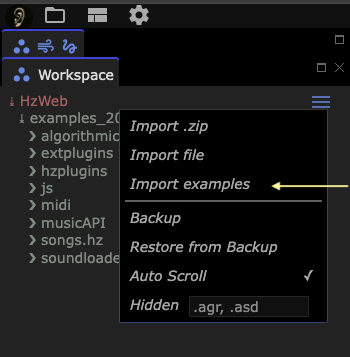
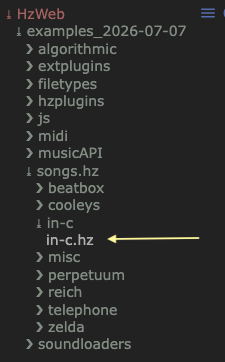
Now use the workspace panel to find: HzWeb/examples_.../songs.hz/in-c.
info
> HzWebcan be clicked to reveal the contents of the workspace folder.
Our next task is to select in-c.hz by clicking on it in the workspace
view. This causes the file contents to be displayed in the
Code Editor. Below you can see what that looks like.
For now we're not concerned about the contents of the file but rather
the context menu that is available there.
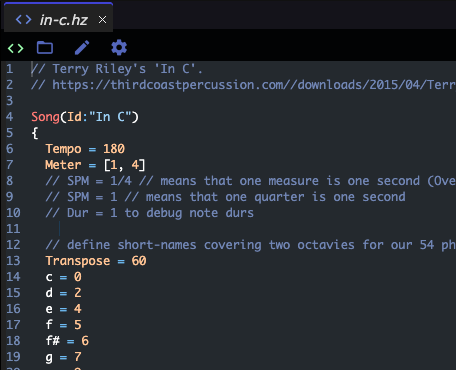
By right-clicking your mouse in this area you should see this menu:
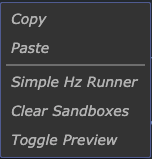
Here, we select Simple Hz Runner.
And Presto! You should now be hearing a multitude of evolving sounds.
If you don't hear any sound, make sure that your system volume is turned
up, the speakers aren't muted, your selected sound-device is the expected
one, etc. If you can hear youtube or soundcloud via your browser, HzWeb
should make sounds too. If any of these steps produced a surprising or
disappointing result, perhaps our Discussions Board
will you help resolve your issues.
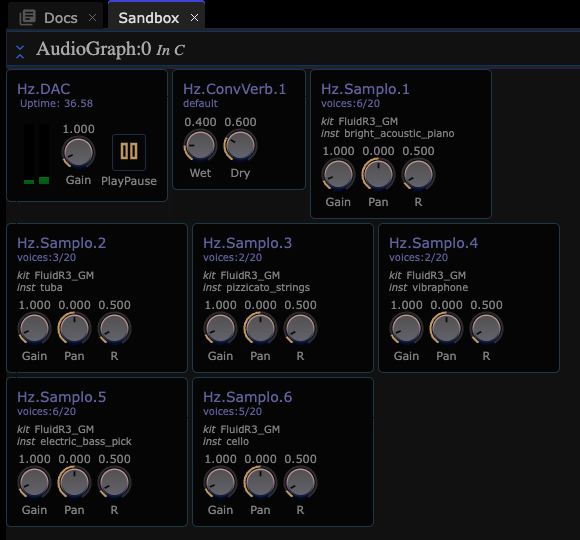
You can monitor the activity of the performance in two ways.
- visit the Sandbox Window (by default, below this Documentation tab). You should see this:
- For more blinking lights you can revisit
in-c.hzwhere its context menu includes Toggle Preview that reveals something like this:
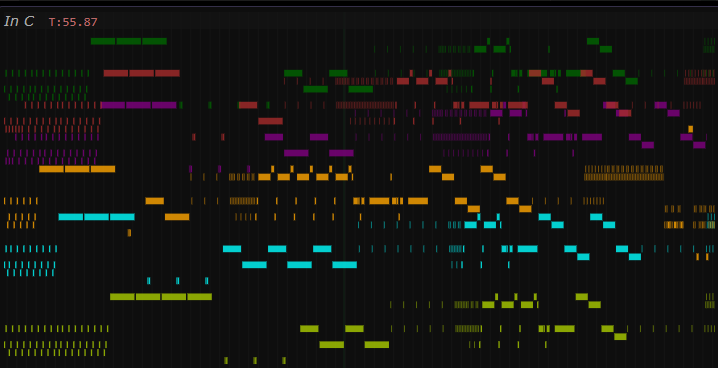
You can pan and zoom this preview. Notice that notes (small rectangles) turn red when played. Also notice that the preview auto-scrolls to keep activity on screen.
Next Steps
After poking around this example you should now be equipped with sufficient poking powers to explore the multitude of examples found here.
Next we recommend browsing the Known Issues,
Interface and Topics
sections to familarize yourself with the vocabulary and machinery of Hz.
Happy Hz-ing!